Troubleshooting vCam Logs
September 30, 2026
Troubleshooting vCam Logs
Logs are text files showing the inner workings of our products’ operating systems. Logs are generated as text files (.txt) and saved in various locations of our products.
The logging feature was first introduced in the vCamDrain Wireless Reel, where the logs are stored in the vCam Mobile Controller (VMC) App. The logging feature was added to the vCamMX-2+ in firmware version 4.6.0 and the vCam-6 in firmware release DVR_042.
- vCamDrain: Logs are saved and accessible in the About section of the VMC app settings.
- vCam Wi-Fi Adapter: Logs are saved and accessible in the About section of the VMC app settings.
- vCamMX-2+: Logs are saved to the SD Card and USB thumb drive when inserted
- vCam-6: Logs are transferred to the USB thumb drive when recordings are transferred to it.
- vCam Mobile Controller App: Wi-Fi-related logs are automatically generated and saved in the app for all products, even if an unsuccessful connection is attempted.
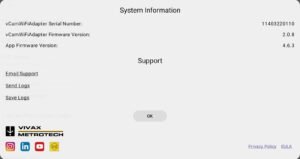
Logs provide us with valuable information for troubleshooting. We highly recommend inserting SD cards into all vCamMX-2+ control modules.
Sending Logs
vCam Mobile Controller App (for vCamDrain and Wi-Fi Adapter logs)
- Launch the app, then select the product from the start screen.
- Go to Settings.
- Go to About.
- Select Send Logs.
- Add your preferred contact method and information to the email body.
- Add the type of device you are using, Apple/Android and its OS version to the email body.
The logs will be examined, and you will be contacted ASAP
Watch the video clip below for a walkthrough of this process
vCamMX-2/MX2+ Control Modules
If the vCam Mobile Controller App was used follow the app’s instructions above.
- Remove the USB thumb drive or SD Card from the MX control module.
- Insert the USB thumb drive or SD Card into a computer.
- Open the thumb drive or SD card and go into the “syslog” folder.
- Drag the text files named with today’s date into the body of an email.
- Address the email to inspectionlogs@vxmt.com.
- Add your preferred contact method to the body of the email.
- Add the make of your device (Apple/Android) and the operating system version to the body of the email.
- Send the email to inspectionlogs@vxmt.com.
vCam-6 Control Module
If the vCam Mobile Controller App was used, follow the VMC app’s instructions.
Note: In the vCam, logs are written to the SD and USB thumb drives only when a file is transferred to them.
- Transfer a file (any file) to the USB thumb drive or SD card.
- Remove the USB thumb drive or SD Card from the vCam-6 control module.
- Insert the USB thumb drive or SD Card into a computer.
- Open the thumb drive or SD card and go into the vCam-6 folder, then the “log” folder.
- Drag the text files named with today’s date into the body of an email.
- Address the email to inspectionlogs@vxmt.com.
- Add your preferred contact method to the body of the email.
- Add the make of your device (Apple/Android) and the operating system version to the body of the email.
- Send the email to inspectionlogs@vxmt.com
FAQ
Q: What size USB thumb drive or SD card should I use?
A: Log files are very small, so a smaller drive such as 8, 16 or 32GB can be used.
Q: How long are the logs saved for?
A: Log files are saved until they are erased from the USB or SD card. In the app, they are overwritten every 17 hours while the app is running.
Q: Why are there so many log files with the same date?
A: A log file is generated every time the control module or wireless device is turned on.
Q: When I look at the SD card, there are several log files. Which ones should I email?
A: Send all the logs with the date when the issue occurred.
Email Support is available through the VMC About screen. Click the Email Support link to email us with questions about Vivax-Metrotech products.
We welcome your comments or suggestions.
Please include your email address or phone number so we can respond promptly.